
- What is the Early Learning Gateway?
- How to Access the Early Learning Gateway ECE Portal
- Welcome to the Early Learning Gateway ECE Portal
- ECE Registration
- Your Profile
- How to Change Your Password
- Forgot Your Password
- How to Sign Out of the Early Learning Gateway?
- Contact Us
Please note: The visuals in this guide display the Early Learning Gateway ECE Portal when accessing it on a mobile device. The appearance of the screen may vary when accessed on a computer, or tablet.
What is the Early Learning Gateway?
The Early Learning Gateway is an online platform to improve access to early learning and child care in Newfoundland and Labrador.
The Early Learning Gateway consists of a parent portal for parents/guardians, a service portal for regulated child care services and a ECE portal for Early Childhood Educators (ECE).
New features will be added in the near future to further support access to high-quality, affordable, and inclusive early learning and child care in the province.
How to Access the Early Learning Gateway ECE Portal
Initial Login for Early Childhood Educators (ECE)
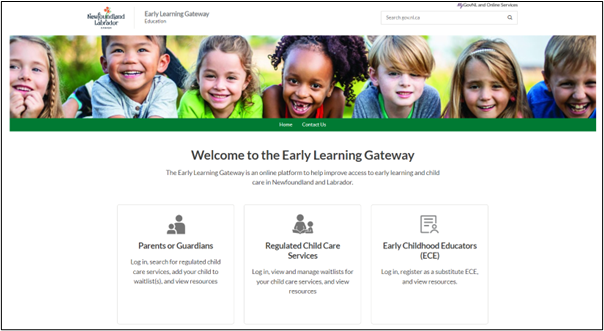
To access the Early Learning Gateway ECE portal, visit the Early Learning Gateway and click Early Childhood Educators (ECE).
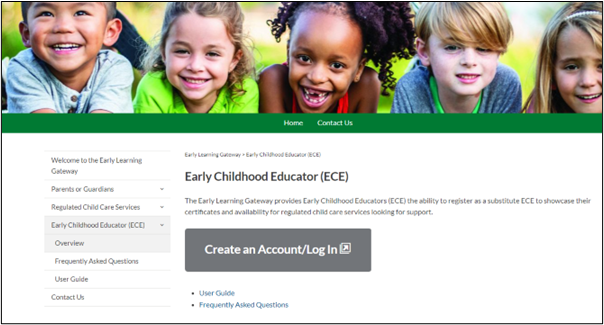
Then, select Create an Account/Log In.
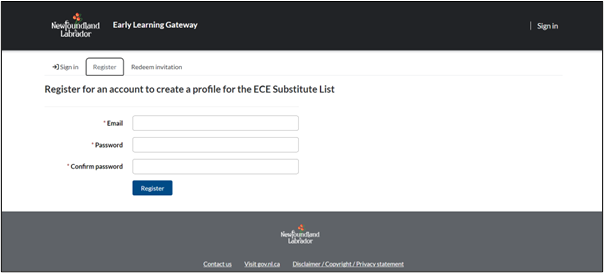
On the login screen, click the Register tab. Enter your email, create a Password.
Then click Register.
Your Profile
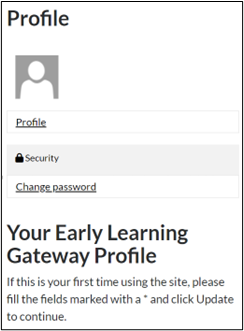
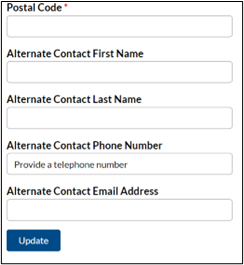
On initial login to the Early Learning Gateway ECE Portal, you will be prompted to enter your profile information. Complete the fields and click Update.
Please note: To add your community, you will have to click the magnifying glass and select your community.
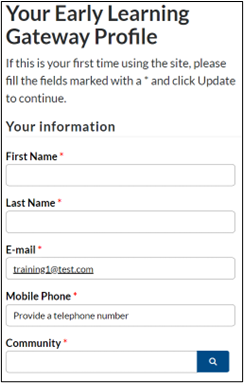
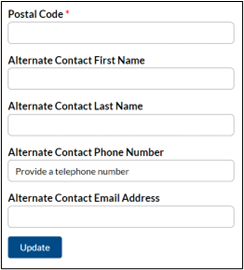
You will be required to keep your profile information up to date. Regulated child care services will use this information to contact you if registered as a substitute ECE.
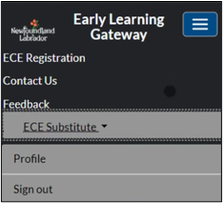
To find your profile after your initial login, click the menu icon, click your name, then click Profile.
Subsequent Logins
After your account creation and initial login has been completed, you can sign into the Early Learning Gateway ECE portal by visiting the Early Learning Gateway. Click Early Childhood Educators (ECE).
Then, select Create an Account/Log In.
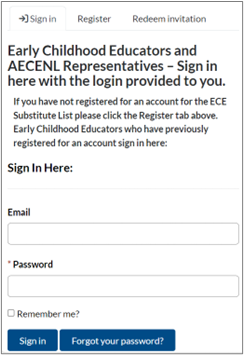
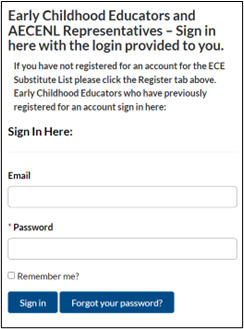
Next, you will see an Early Learning Gateway ECE Portal Sign in screen. Enter your email and password, then click Sign in.
Two Factor Authentication
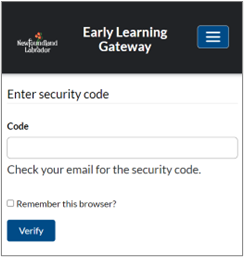
Once you enter your email and password, you will be prompted to enter a security code that will be sent to your email. Check your email, then enter the code. Click Verify.
Welcome to the Early Learning Gateway ECE Portal
Once you sign into the Early Learning Gateway ECE Portal, you will have ability to:
- register as a substitute ECE to showcase your certifications and availability for regulated child care services looking for support
- edit your profile details
- disable the visibility of your profile if unavailable for work
Please note: All ECE registrations will be reviewed and approved by AECENL. Once approved, the ECE profile will be added to the list of ECE substitutes for regulated child care services.
ECE Registration
ECEs who hold a Child Care Services Certification (CCS) can register as an ECE substitute through the Early Learning Gateway. When an ECE completes registration, it is submitted to AECENL for review and approval.
Register as a Substitute ECE
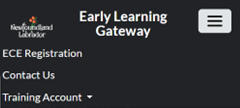
Once logged into your Early Learning Gateway ECE Portal, click the menu icon  at the top right of the screen, then select ECE Registration.
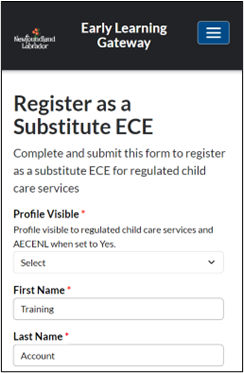
Register as a Substitute ECE form will appear. Please update the required fields. Once completed, scroll down, and click the Submit for Approval button.
Please note: To make your profile visible to regulated child care services after your registration is approved, choose Yes from the drop-down menu under Profile Visible.
Once submitted, your registration is sent to AECENL for review and approval. AECENL will review your Certification and Highest Certification Level, and your profile status will be updated once the review is complete.
View Your ECE Registration Status
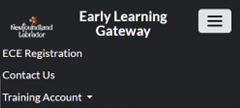
To view your ECE Profile Status of your ECE Registration, click the menu icon at the top right of the screen. Then select ECE Registration.
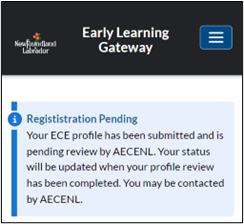
If your registration is pending, a notification will appear at the top of the screen.
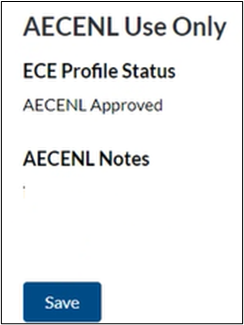
After AECENL reviews your ECE Registration, scroll down the page to find your ECE Profile Status under the section labeled AECENL Use Only.
- If approved, your profile status will be updated as AECENL Approved. Regulated child care services will see your name on the list of ECE substitutes.
Please note: The child care service will verify requirements and any supporting documents with you and will use their existing hiring practices prior to confirming work in the child care service.
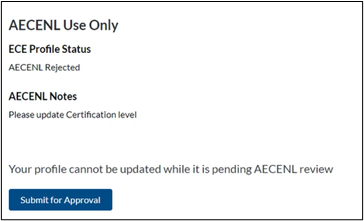
- If rejected, your ECE Profile Status will be updated as AECENL Rejected.
Please note: Review AECENL Notes for details on why it may have been rejected. AECENL reviews your Certification and Highest Certification Level; if you find any errors, you can update the information and click Submit for Approval.
Edit Your ECE Registration
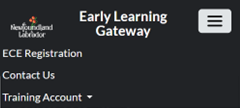
To edit your ECE Registration, click the menu icon at the top right of the screen. Then select ECE Registration.
Your ECE Registration screen will appear with your details.
Please note: Your ECE Registration screen will not appear if your registration is pending approval.
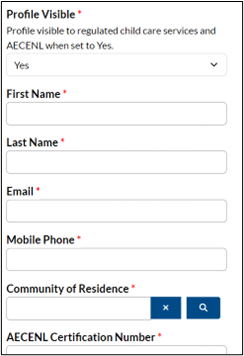
Proceed to update the necessary fields. Once completed, scroll down, and click the Save button.
Please note: If you are updating your Highest Level of Education, scroll down and click Resubmit for Approval. Once resubmitted, your registration is sent to AECENL for review and approval. Your profile status will be updated once reviewed by AECENL.
Your Profile
To update your profile, click the menu icon at the top right of the screen. Select your name, then click Profile.
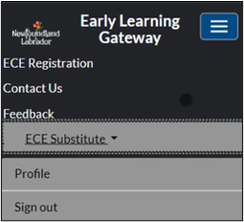
Proceed to enter your information, then click Update.
How to Change Your Password
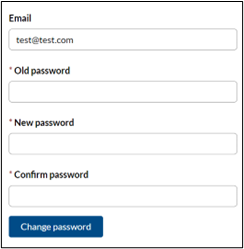
To change your password, sign into the Early Learning Gateway ECE Portal, click the menu icon at the top right of the screen. Select your name, then click Profile.
Select Change password.
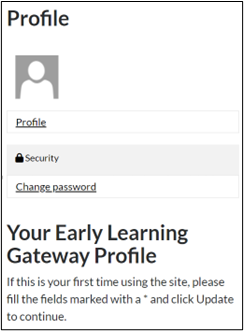
Complete the fields, then click Change password.
Please note: Fields marked with an asterisk (*) are mandatory.
Forgot Your Password
If you forget your password, please select Forgot your password on the Early Learning Gateway ECE Portal Sign in screen.
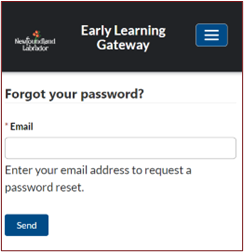
Enter your Email then click Send.
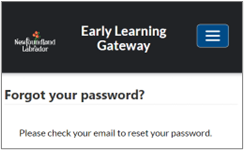
You will receive a notification prompting you to check your email to reset your password.
How to Sign Out of the Early Learning Gateway?
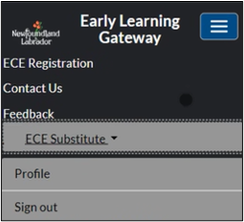
To sign out of the Early Learning Gateway ECE Portal, click the menu icon at the top right of the screen. Select your name, then click Sign out.
Contact Us
If you have a general inquiry or require technical support for the Early Learning Gateway, you can contact the Department of Education at elgateway@gov.nl.ca or use the Contact Us feature.