- What is the Early Learning Gateway?
- How to Access the Early Learning Parent Portal
- Your Profile
- Parent Dashboard
- Notifications
- Resources
- Feedback
- Contact Us
- How to Sign Out of the Early Learning Gateway?
Please note: The visuals in this guide display the Early Learning Gateway when accessing it on a mobile device. The appearance of the screen may vary when accessed on a desktop computer, or tablet.
What is the Early Learning Gateway?
The Early Learning Gateway is an online platform to improve access to early learning and child care in Newfoundland and Labrador.
The Early Learning Gateway parent portal provides parents/guardians seeking child care the ability to:
- search for regulated child care services, and
- add their child(ren) to their waitlists.
The Early Learning Gateway service portal provides regulated child care services the ability to:
- view and manage the list of parents who added child(ren) to their waitlist in the Early Learning Gateway.
New features will be added in the near future to further support access to high-quality, affordable, and inclusive early learning and child care in the province.
How to Access the Early Learning Parent Portal
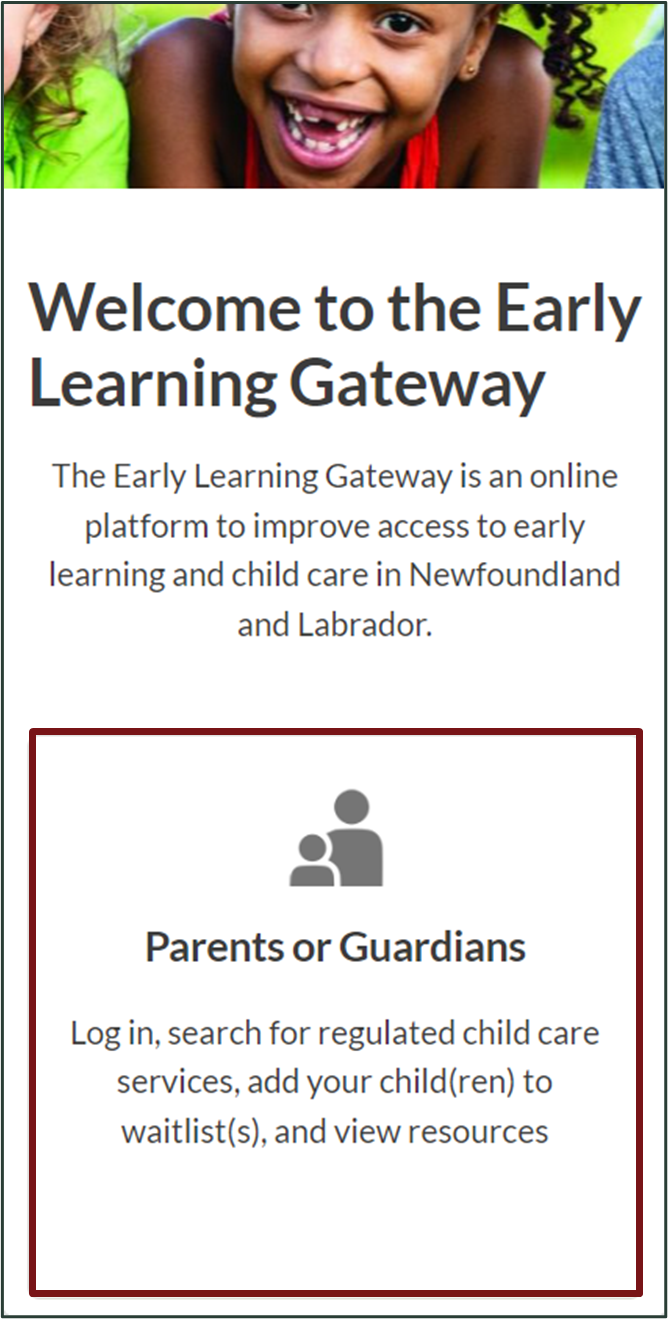
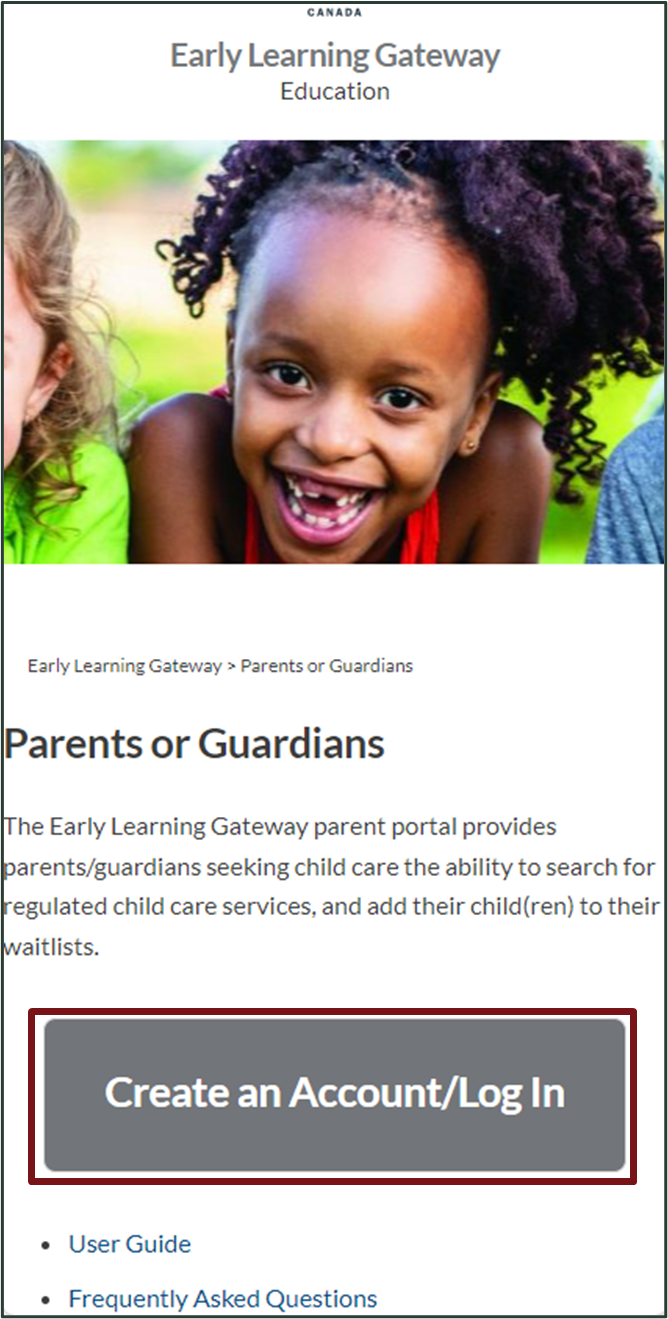
To access the Early Learning Gateway parent portal, visit the Early Learning Gateway and click on the Parents or Guardians, then select Create an Account/Log In.
You will then need to log into your MyGovNL account.
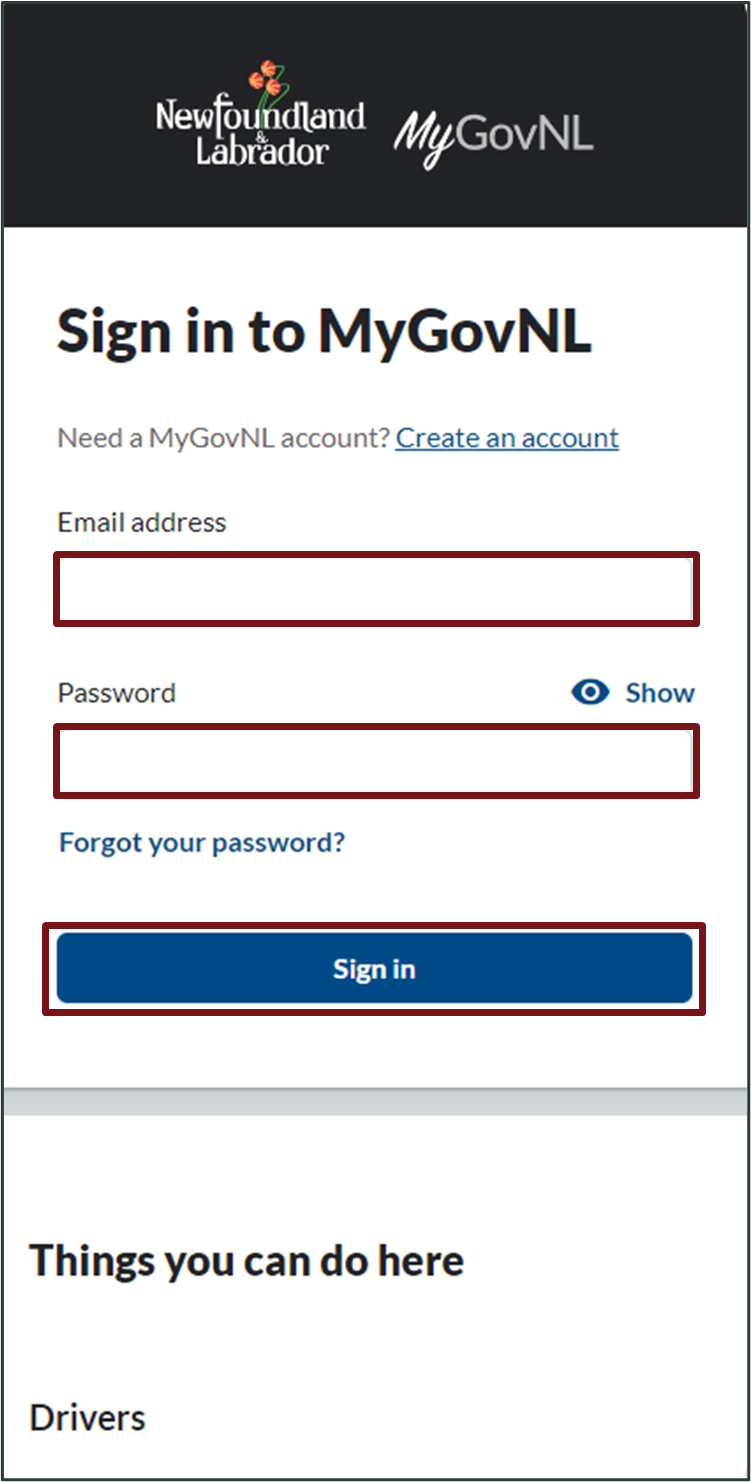
To access the Early Learning Gateway service within MyGovNL, you must:
- Be a resident of Newfoundland and Labrador; and
- Have a valid MCP; or
- Have a valid Government of Newfoundland and Labrador issued Driver’s License or Photo ID.
If you are an out of province parent/guardian seeking child care in Newfoundland and Labrador, please complete the Out of Province Waitlist Request Form.
If you do not have a MyGovNL account you will need to create one by clicking ‘Create an account’. If you need any assistance completing the request to create a MyGovNL account, please contact digitalgovernment@gov.nl.ca.
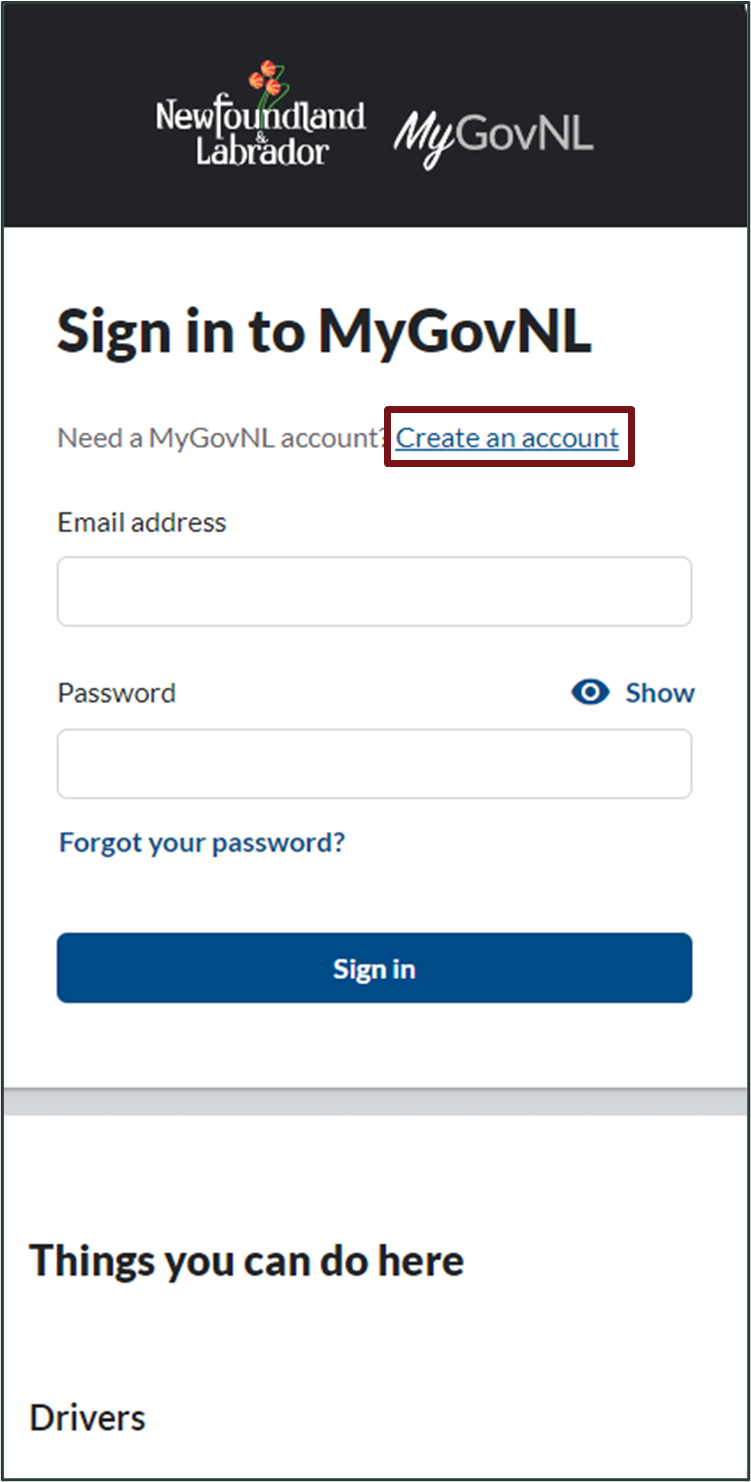
Please note: If you need assistance with your MCP, please visit the MCP service on the services page at MyGovNL.ca. If you need assistance with your Driver’s License or Photo ID information, please visit the Driver and Vehicle Service on the services page at MyGovNL.ca.
Once logged into your MyGovNL account, click on Early Learning Gateway located under Services.
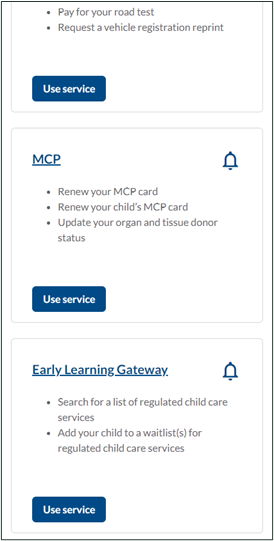
Your first time accessing the Parent Portal, you will need to accept terms of use and confirm your identity.
Under Actions, select Open Early Learning Gateway Portal.
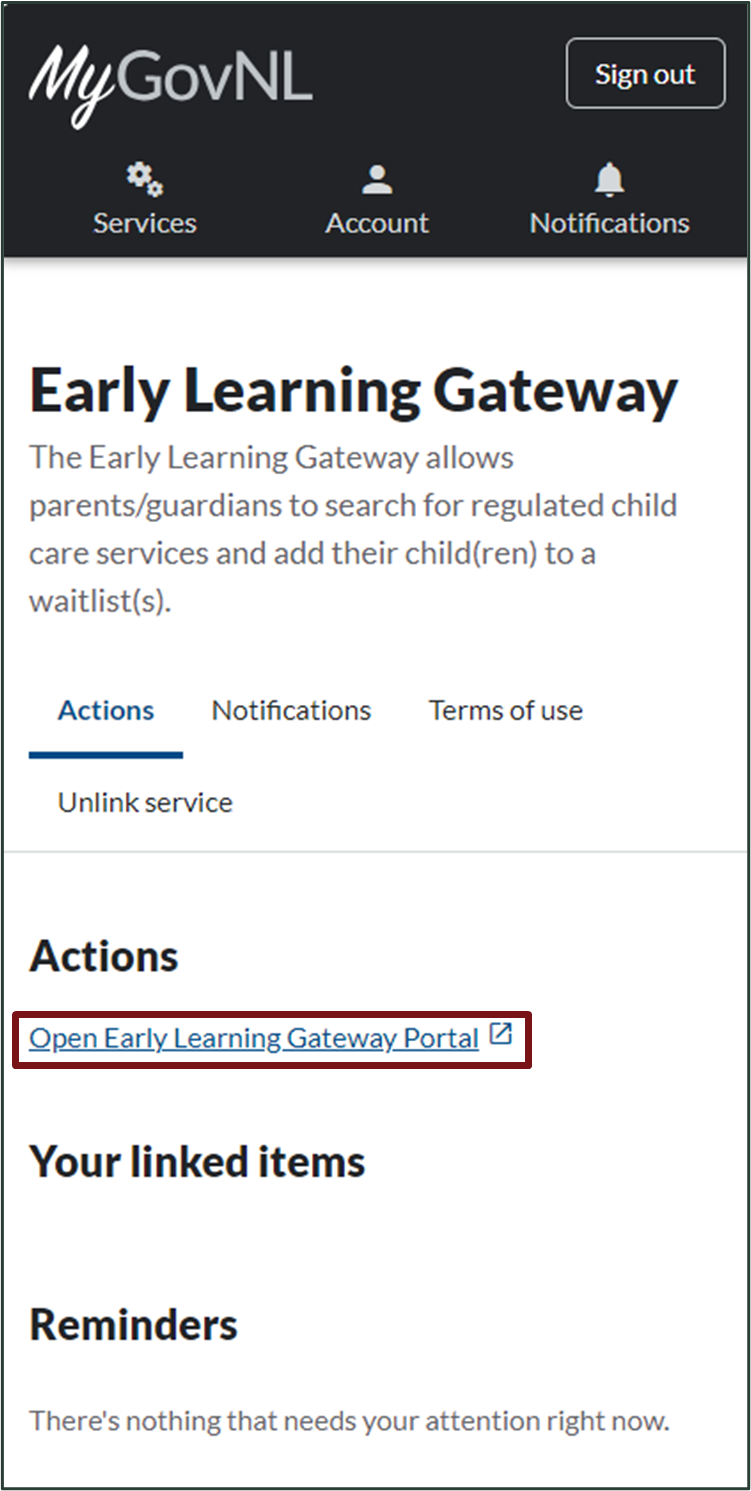
Your Profile
On initial login to the Early Learning Gateway Parent Portal, you will be prompted to enter your profile information. Complete the fields and click Update.
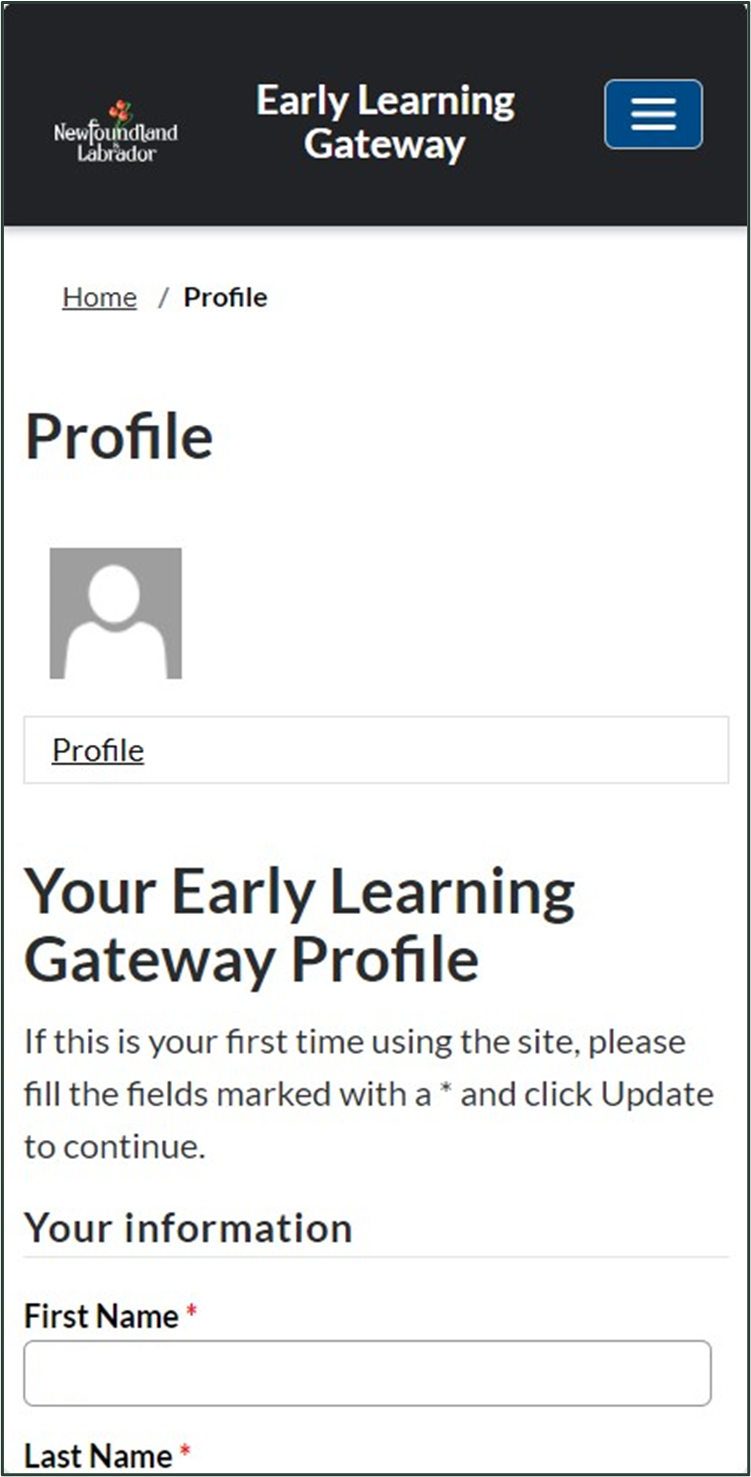
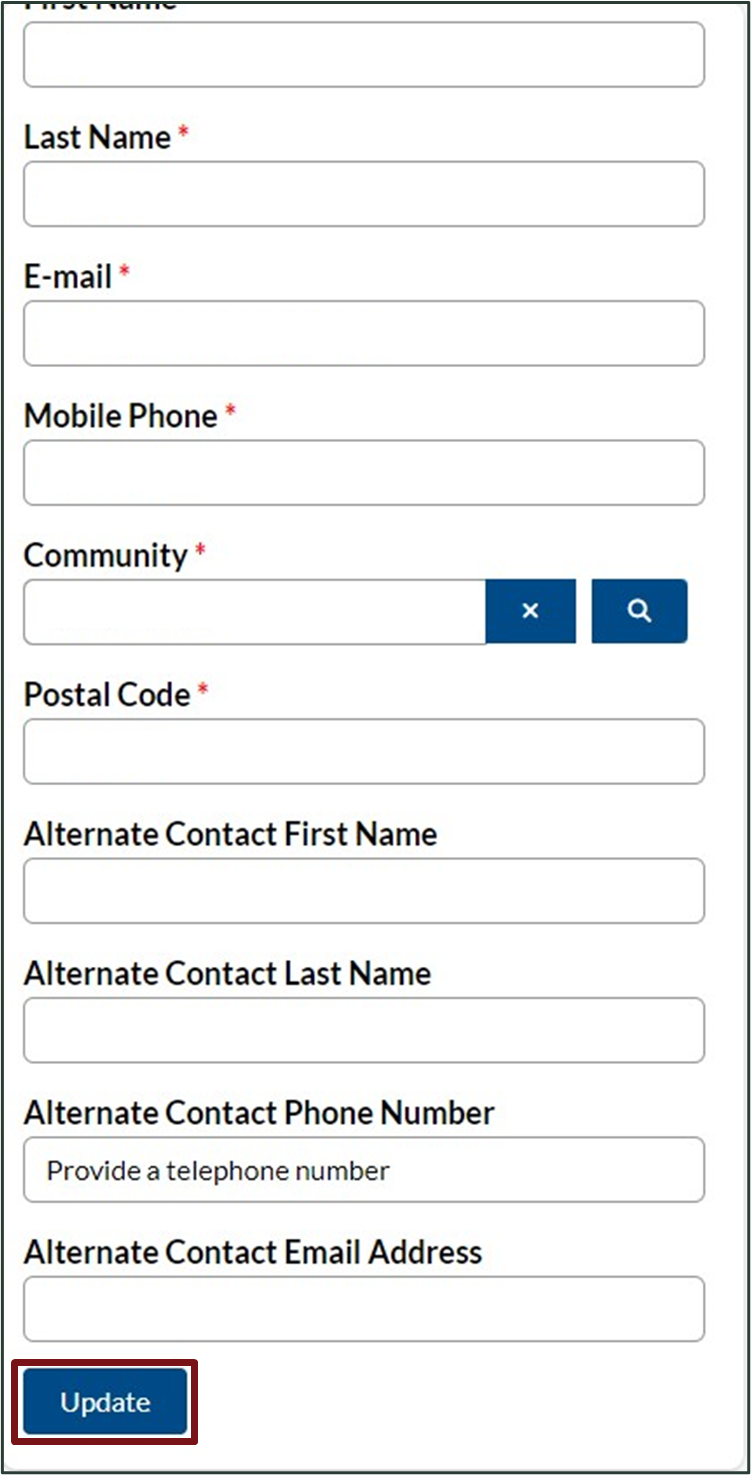
You will be required to keep your profile information up to date. Regulated child care services will use this information to contact you if you added your child to their waitlist and a space becomes available.
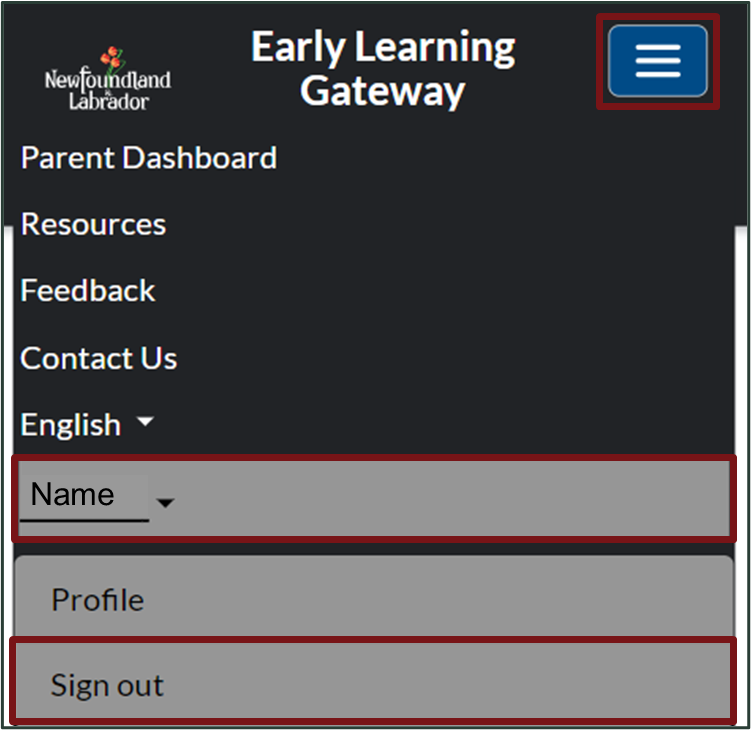
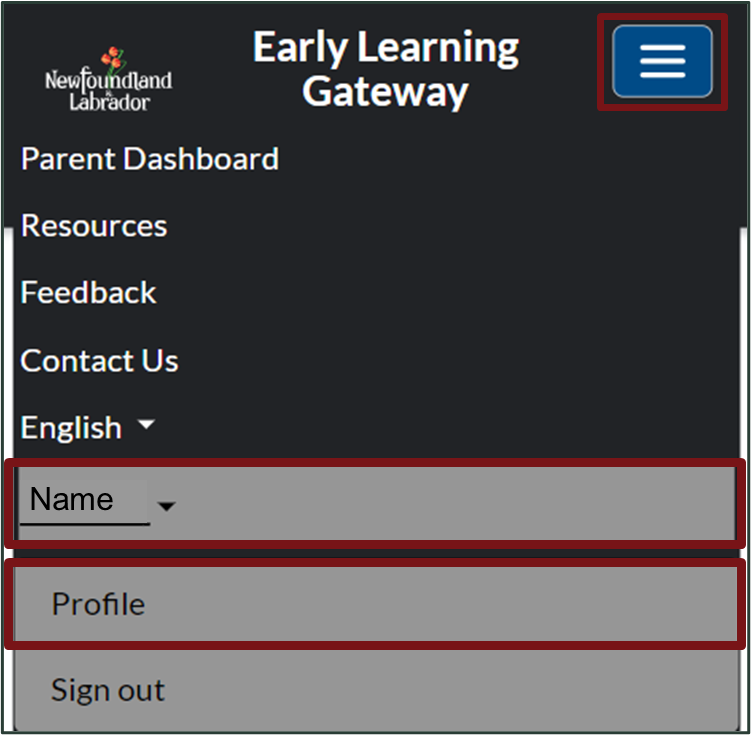
To find your profile after your initial login, click the menu icon, click your name, then click Profile.
Parent Dashboard
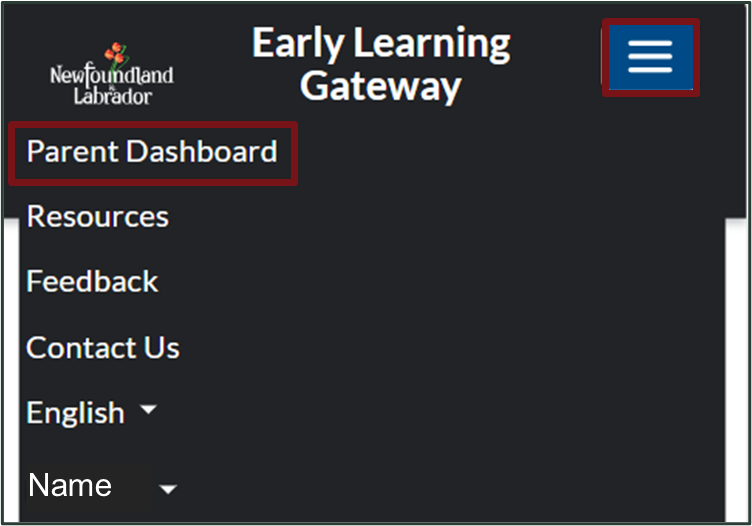
Once you sign into the Early Learning Gateway Parent Portal, select the menu icon, then click Parent Dashboard.
The Parent Dashboard includes the following sections:
- Your Children
- Your Waitlist
- Search for Regulated Child Care Services
How to add Child(ren) to the Early Learning Gateway Parent Portal
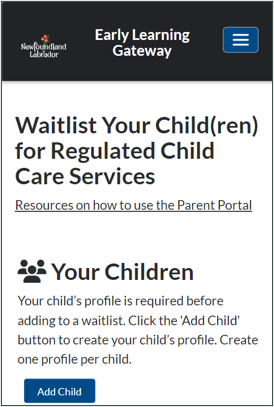
Within the Parent Dashboard, you will need to add your child(ren) before proceeding to add them to a child care service waitlist.
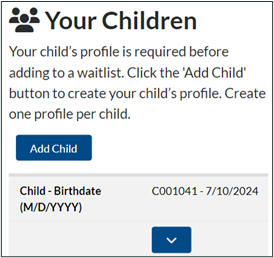
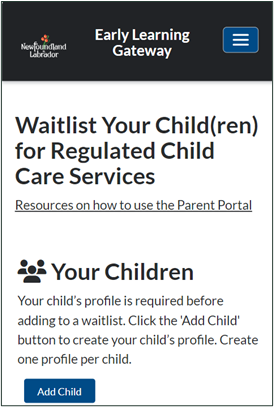
- Under the ‘Your Children’ section, click Add Child to create your child’s profile.
Please note: You will only need to create one profile per child.
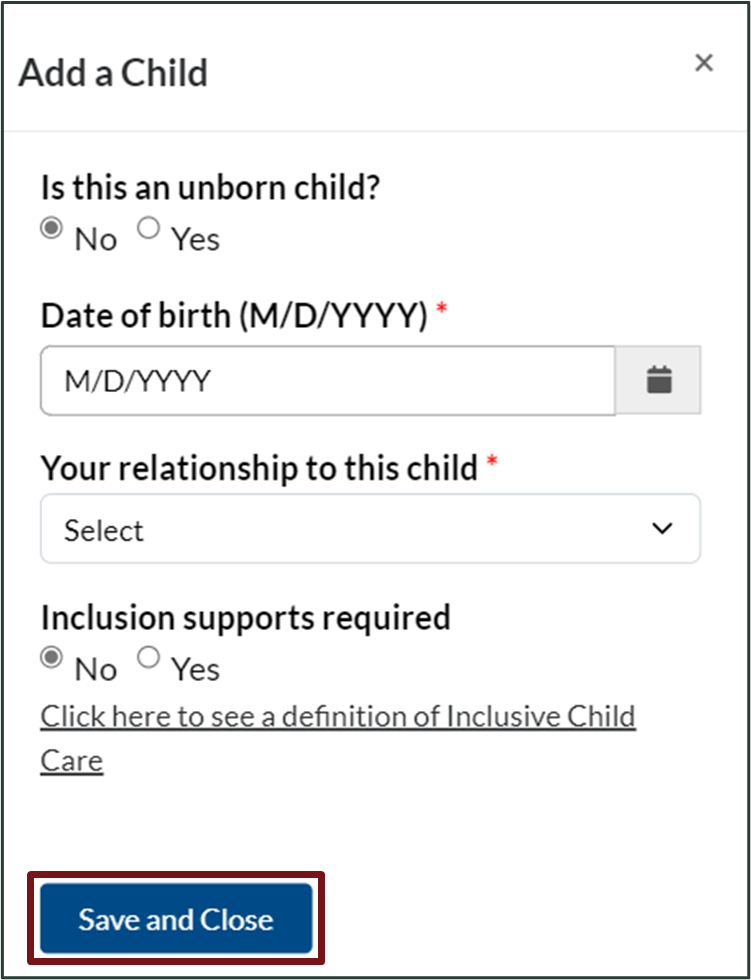
- An Add a Child window will appear. Complete the fields, then select Save and Close.
Please note: If you are an expectant parent, you can select ‘Yes’ to the question ‘Is this an unborn child?’ and proceed to enter the expected birth date in the Date of Birth field. If needed, you can return and edit your child’s profile in future.
- After creating your child’s profile, you will find them listed under the ‘Your Children’ section.
How to add Child(ren) to a Regulated Child Care Service Waitlist
Once you have added your child(ren) within the Parent Dashboard, complete the following steps to search for regulated child care services and add your child(ren) to your preferred child care service waitlist.
Please note: Only one parent/guardian is required to add their child(ren) to a regulated child care service waitlist on the Early Learning Gateway.
Step 1: Search for Regulated Child Care Services
After adding your child(ren), navigate down the page to the ‘Search for Regulated Child Care Services’ section.
Select your search criteria and your search results will automatically appear. To clear your search criteria, click Clear.
Please note: You can also type in the search field if you know the name of the service. To search on partial text, use the asterisk (*) character.
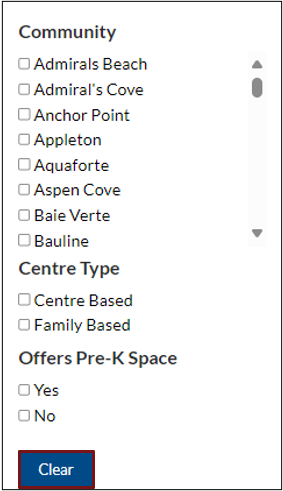
Regulated child care services matching your filter and search criteria will display.
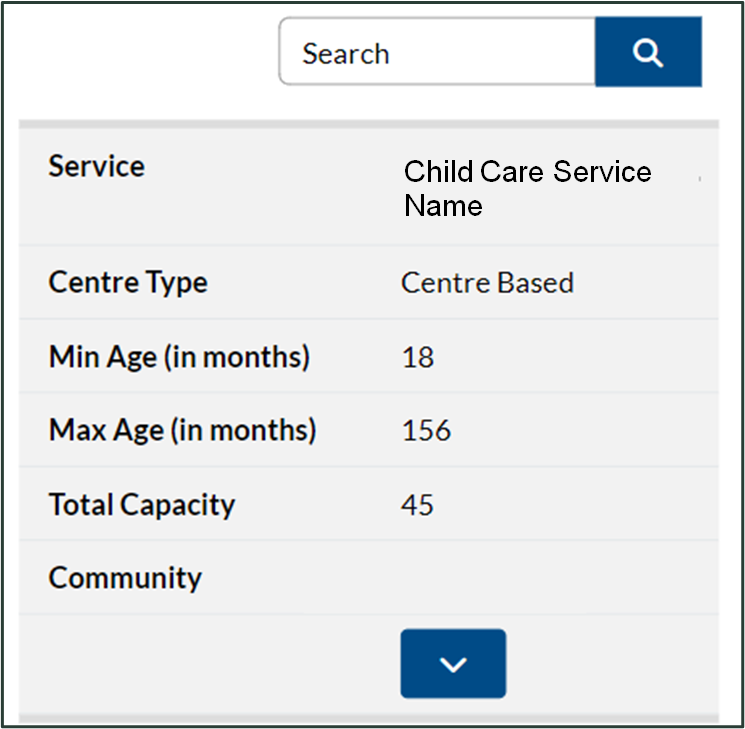
Step 2: Add your Child(ren) to a Child Care Service Waitlist
Select your preferred regulated child care service by clicking the child care Service Name or the drop-down arrow.
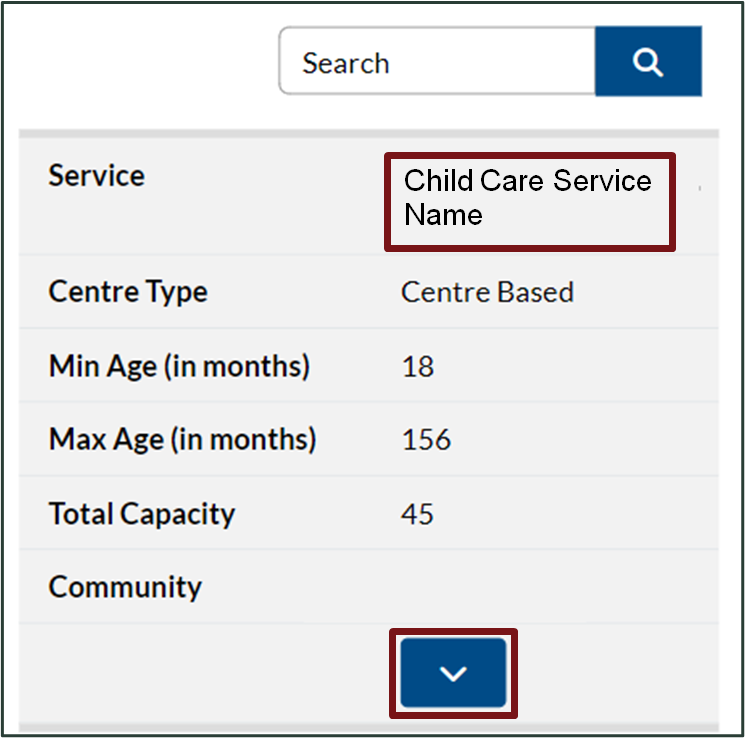
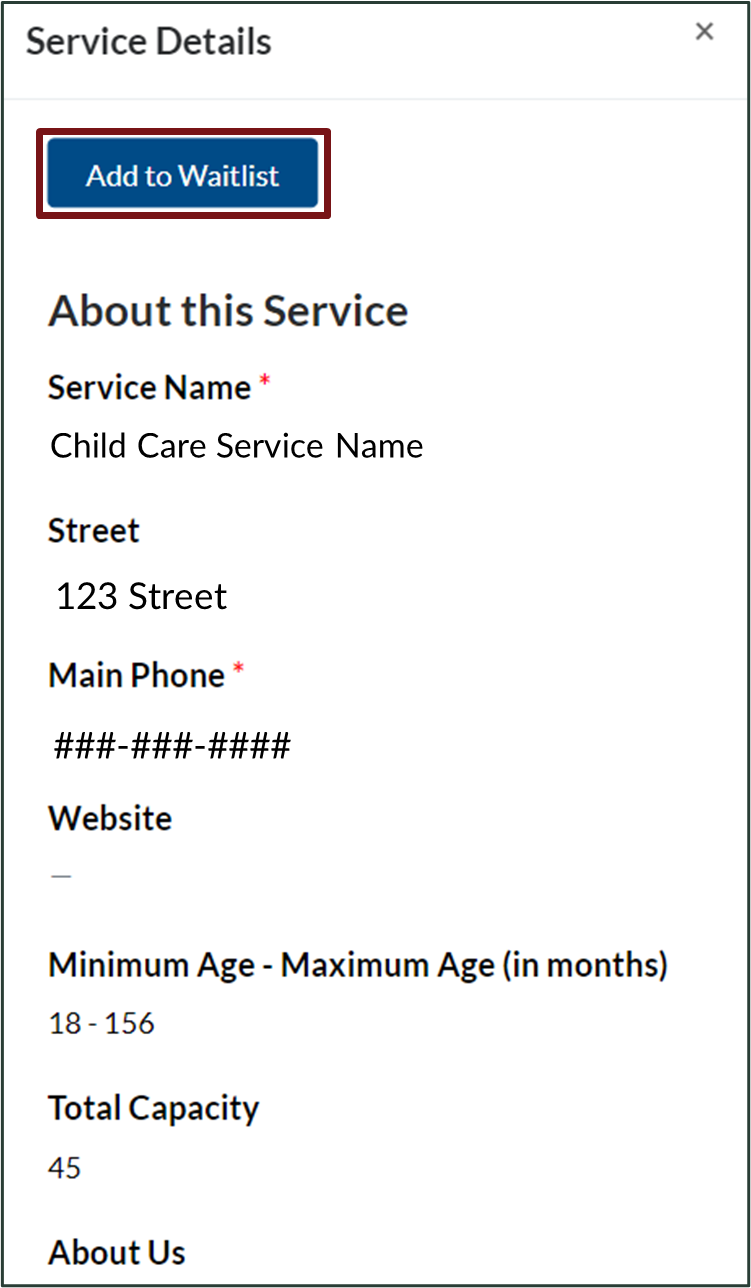
A new window will appear outlining the Service Details. To add your child to the service waitlist, select Add to Waitlist.
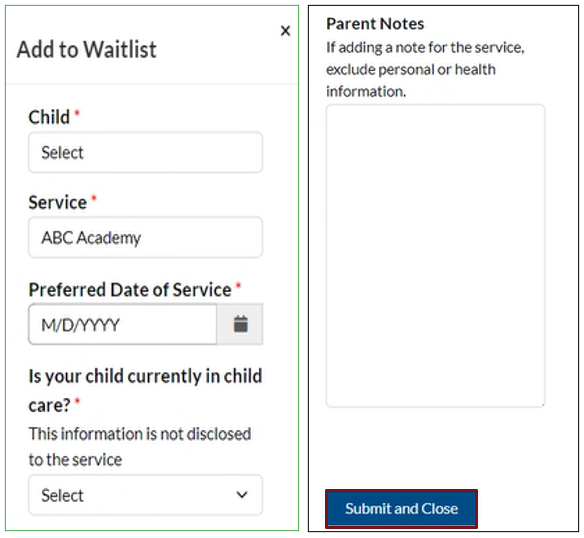
An Add to Waitlist window will open for the selected child care service. Complete the required information for your child, scroll down and Click Submit and Close.
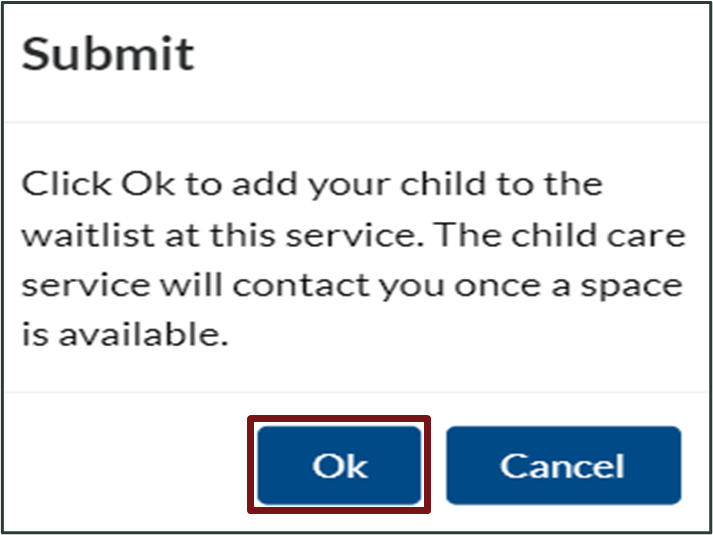
A Submit window will appear to confirm you would like to add your child to the service waitlist. Click Ok.
Once your request is submitted, you will see your newly added waitlist at the bottom of the Service Details window.
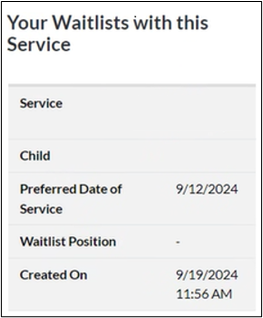
If you would like to add an additional child to this service waitlist, click Add to Waitlist at the top of the Service Details window. If not, click x to close the window.
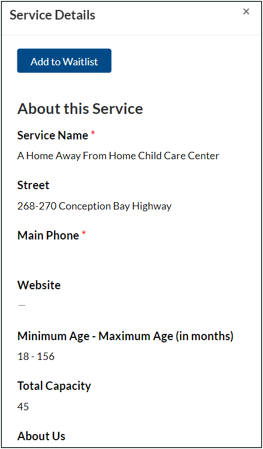
Once you add your child to a services waitlist, it will display under ‘Your Waitlist’ on the Parent Dashboard.
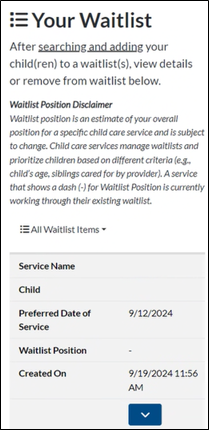
If you would like to add your child(ren) to additional regulated child care service waitlists, please repeat steps one and two.
Your Children
On the parent dashboard, under the ‘Your Children’ section, you will see the list of child(ren) that you have added to the Early Learning Gateway Parent Portal. You are required to create your child’s profile prior to adding to a services waitlist. Please see the How to Add Your Child(ren) to the Early Learning Gateway Parent Portal section for further instructions on how to create your child’s profile.
View and Edit Your Children
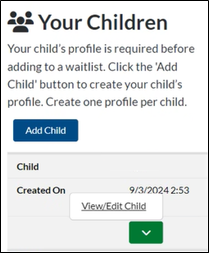
To view and edit your child’s profile, under Your Children, click on the drop-down arrow for the child, then select View/Edit Details.
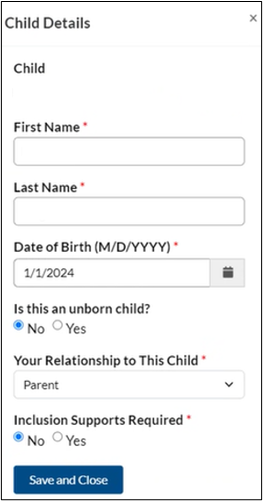
Next, a Child Details window will appear. Proceed to view or edit the fields, then select Save and Close.
Your Waitlist
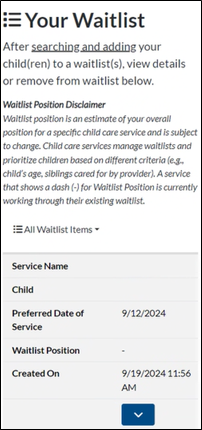
Once you add your child(ren) to a services waitlist, it will display under ‘Your Waitlist’ on the Parent Dashboard.
Modify your Waitlist
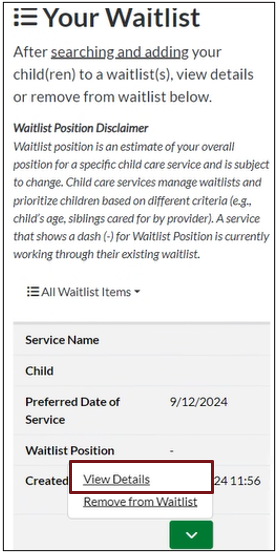
To modify a waitlist listed under Your Waitlist, click on the Service or select the drop-down arrow for the appliable regulated child care service, then select View Details.
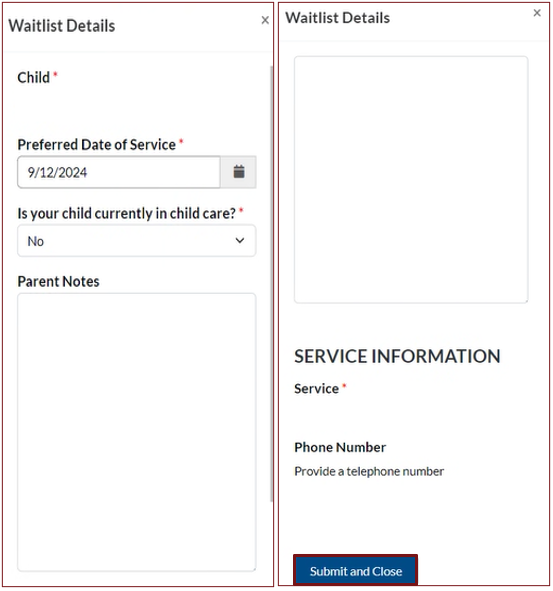
Next, a Waitlist Details window will appear. Proceed to update the fields, then select Submit and Close.
Remove a Waitlist
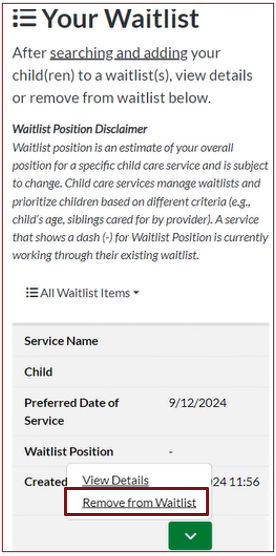
To remove a waitlist listed under Your Waitlist, click on the Service or select the drop-down arrow for the appliable regulated child care service, then select Remove from Waitlist.
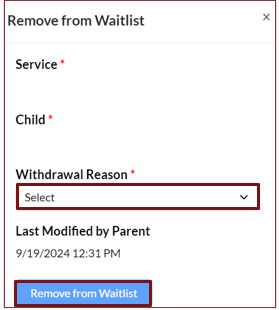
Next, a Remove from Waitlist window will appear. Select the Withdrawal Reason from the drop-down menu, then select Remove from Waitlist.
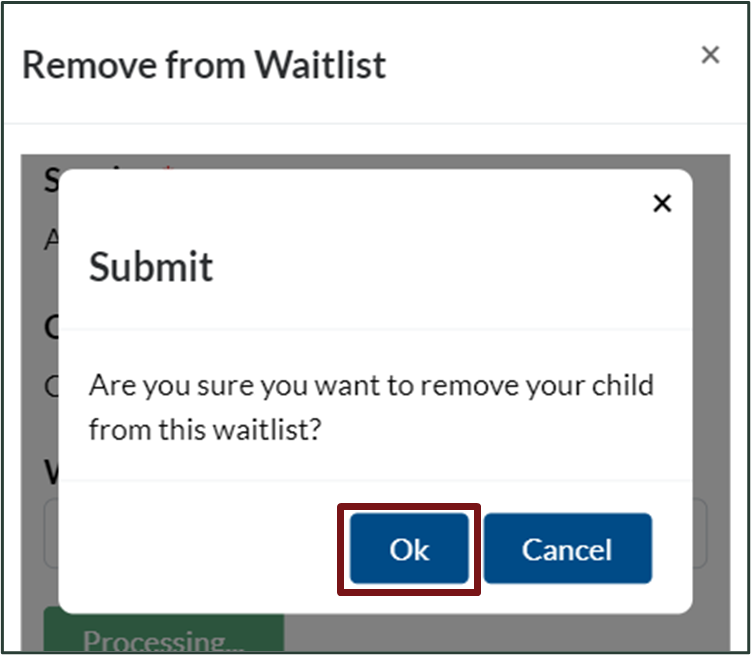
A Submit window will appear to confirm you would like to remove your child from the service waitlist. Click Ok.
Please note: If you remove a waitlist, the regulated child care service will no longer have your child on their waitlist.
Notifications
Waitlists Requiring Your Attention
To maintain accurate waitlist records, you must review your waitlist in the Early Learning Gateway approximately every six months. After adding a child to a child care service waitlist, you will receive three email notifications every six months, prompting you to review your waitlist(s). After the first email, you have 17 days to complete the review. Waitlists not reviewed within this period will be deactivated.
Please note: When you log into the Early Learning Gateway Parent Portal, a notification will appear at the top of your Parent Dashboard to remind you to review your waitlist(s) when it is time.
How to Review Waitlists Requiring Your Attention
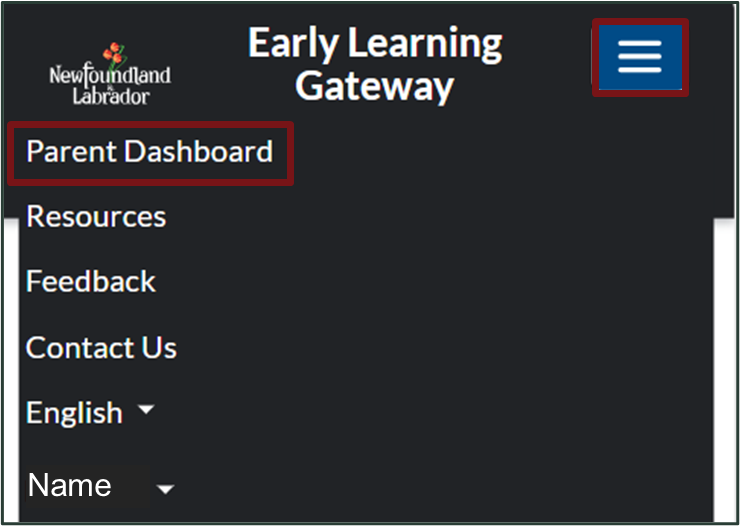
Once you sign into the Early Learning Gateway Parent Portal, select the menu icon, then click Parent Dashboard.
Choose one of the two options:
Option 1:
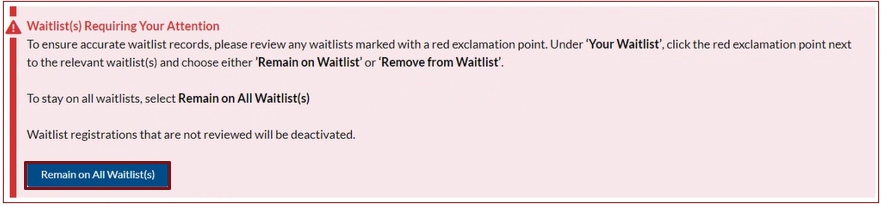
To remain on all waitlist(s), select Remain on All Waitlist(s) at the top of your screen.
Option 2:
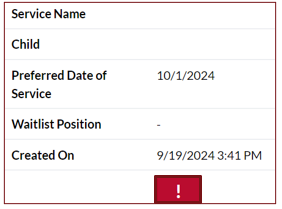
To review the specific waitlist that requires your attention, go to the Parent Dashboard, navigate to Your Waitlist. Then, click on the red exclamation point next to the relevant waitlist(s).
From the drop-down menu choose one of the two options:
- Choose Remain on Waitlist to keep your child on the waitlist.
- Choose Remove from Waitlist to remove your child from the waitlist.
Please note: If you do not see these options, you may be required to select View Details to answer questions for the child care service.
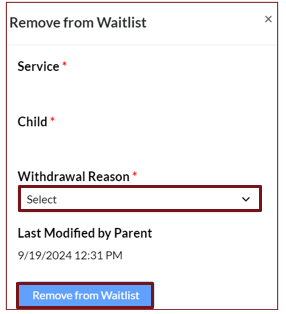
If you select Remove from Waitlist, a window will appear. Select the Withdrawal Reason from the drop-down menu, then select Remove from Waitlist.
A Submit window will appear to confirm you would like to remove your child from the service waitlist. Click Ok.
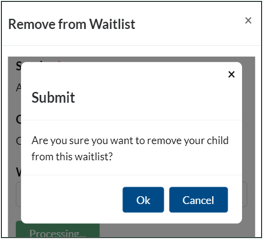
Please note: If you remove a waitlist, the regulated child care service will no longer have your child on their waitlist.
Child Care Service Priority Questions
When adding a child to a child care service waitlist in the Early Learning Gateway, parents/guardians may need to answer a series of priority questions, depending on the service. Child care services may manage and prioritize waitlists based on various criteria (e.g., child’s age, siblings). The information helps the child care service effectively manage their waitlist.
If you added a child to a child care service waitlist, you may receive a notification titled “Child Care Service Priority Questions” in the Early Learning Gateway Parent Portal, prompting you to answer questions for the service. To do this, on the Parent Dashboard navigate to Your Waitlists, click the red exclamation point next to the relevant waitlist(s), choose View Details. Then, answer the questions for the service, and click Submit and Close.

Update Your Child(ren)’s Information
On the Early Learning Gateway Parent Portal, you have added your child’s information to their profile. As improvements are made to the Early Learning Gateway, you may need to update their information (e.g., child’s name). To do this, go to the Parent Dashboard, navigate to Your Child(ren), click the red exclamation point next to your child, and select View/Edit Child. Then, complete any missing fields and click Submit and Close.

Resources
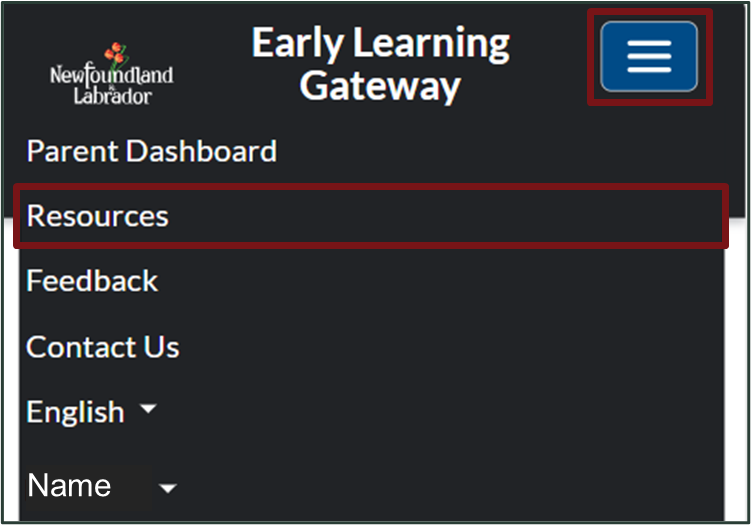
To view Frequently Asked Questions, Resource Guides, and our Parent Portal Video, please click the menu icon and select Resources. You will be re-directed to the Early Learning Gateway Resources page.
Feedback
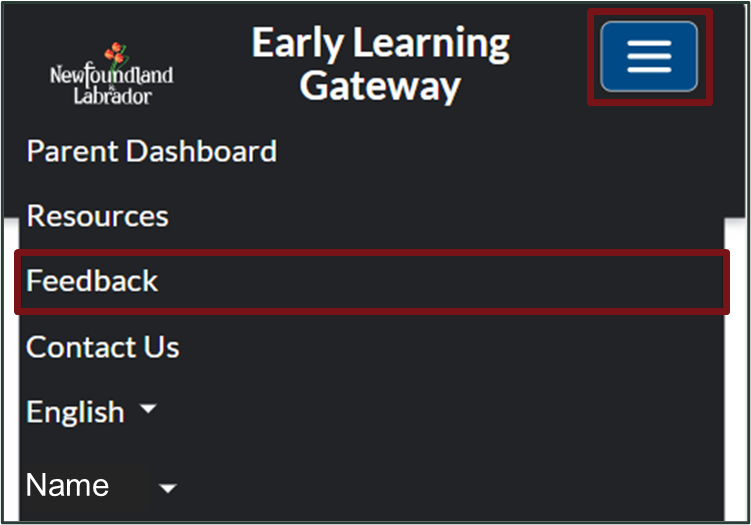
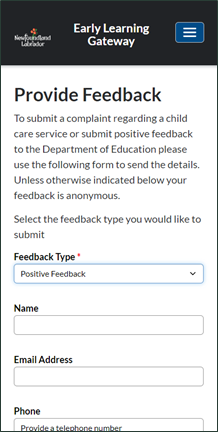
If you have a complaint or positive feedback, please use the feedback option by selecting the menu icon, then clicking Feedback.
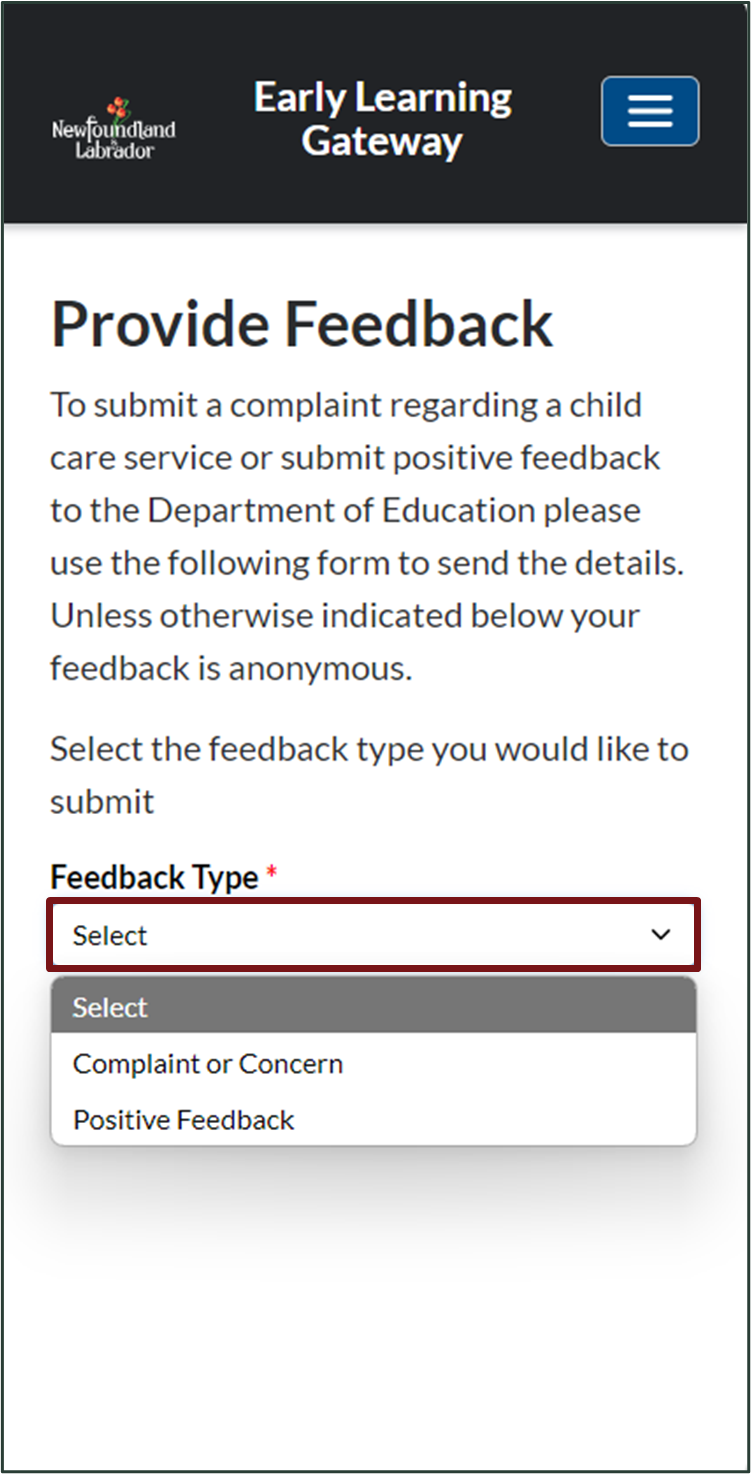
A Provide Feedback screen will open. Select the Feedback Type from the dropdown menu.
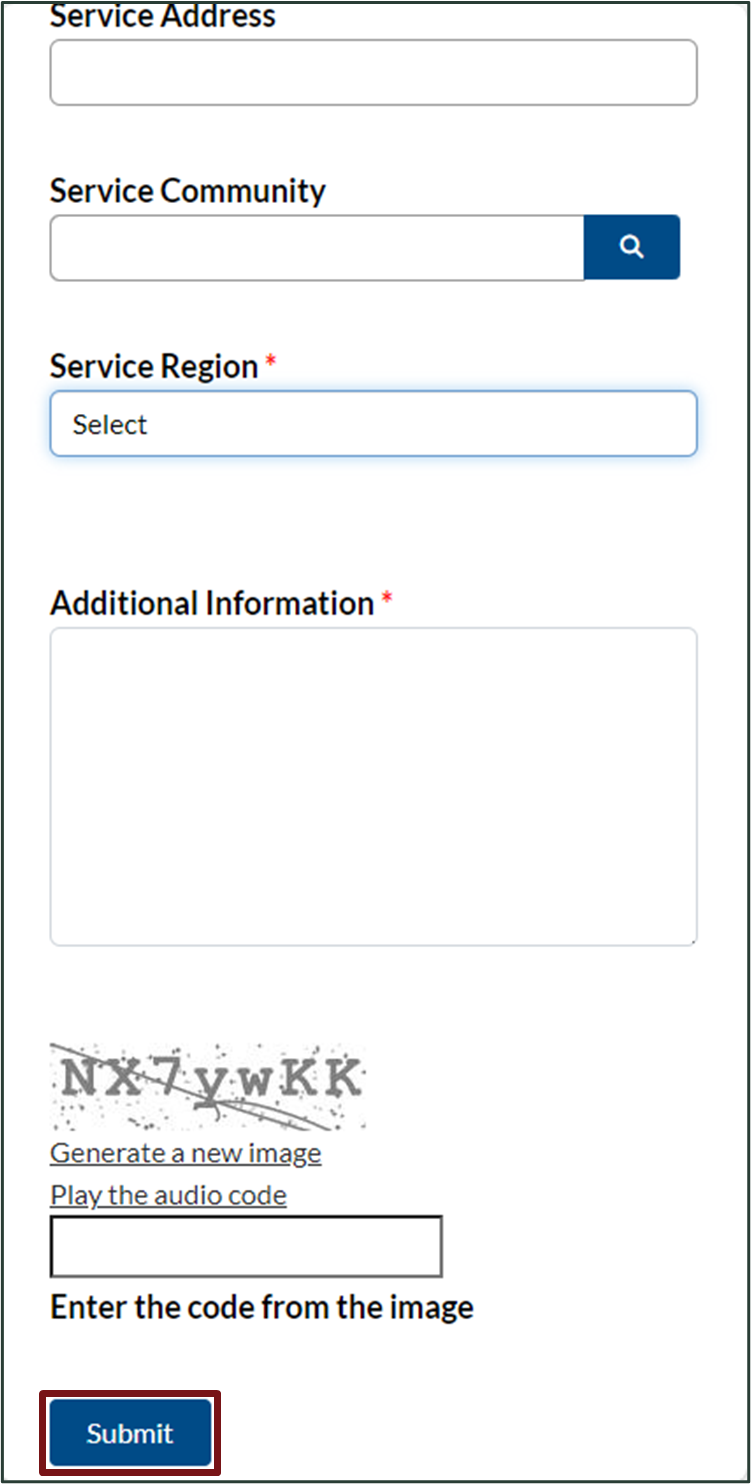
A new window will open. Complete the fields, then click Submit.
Please note: Name, email address, and phone number are optional.
Contact Us
If you have a general inquiry or require technical support for the Early Learning Gateway, you can contact the Department of Education at elgateway@gov.nl.ca or use the Contact Us feature.
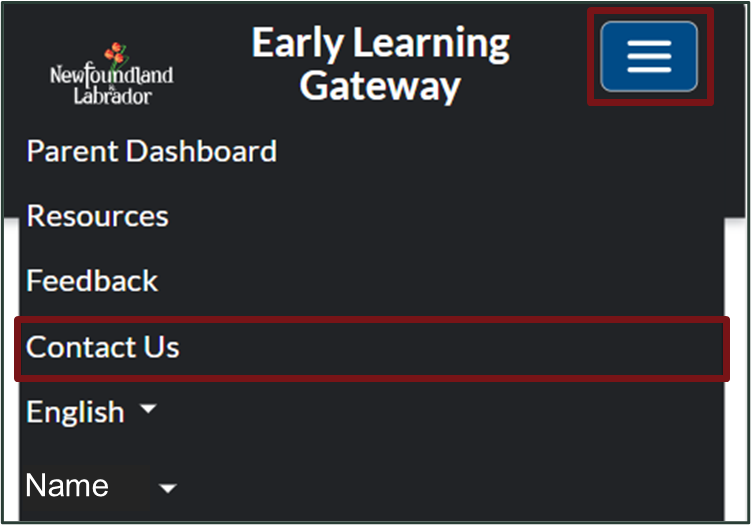
To utilize the Contact Us feature, please select the menu icon, then click Contact Us.
Proceed to update the fields on the form and click Submit.
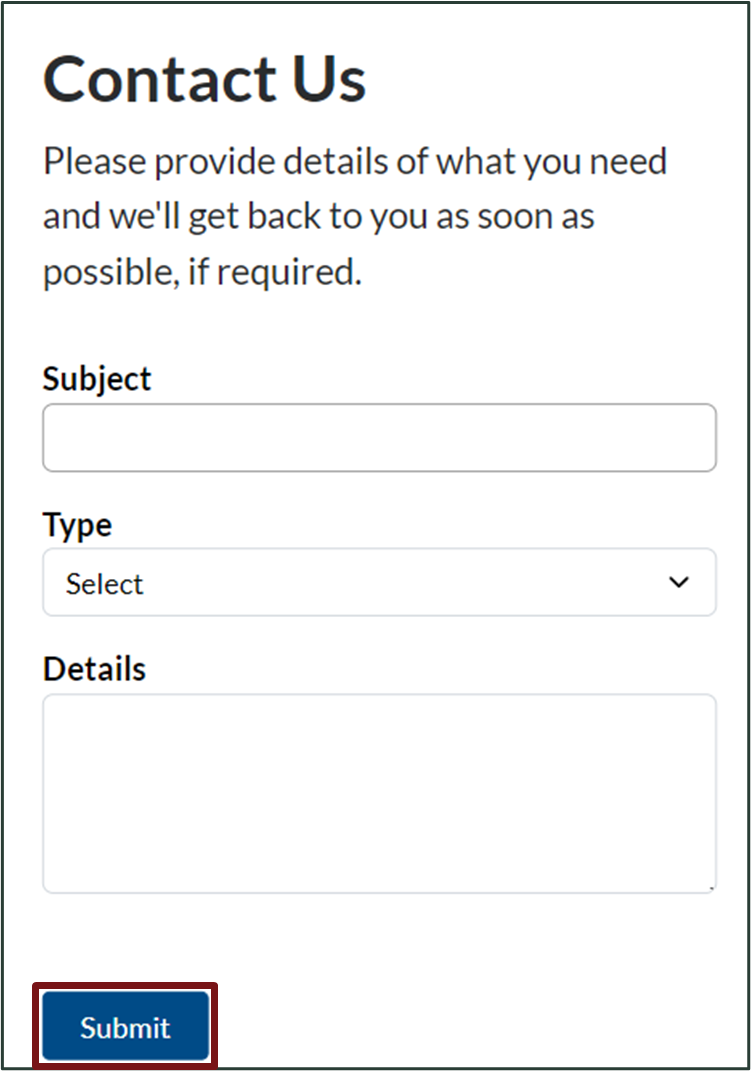
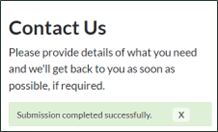
You will receive a message that the submission was completed successfully.
How to Sign Out of the Early Learning Gateway?
Once you sign into the Early Learning Gateway Parent Portal, under the menu icon, click your name, then click Sign out.